Naming and labels
Replace an opaque ID such as switch.0x00abc123_2 with a clear name such as “Living Room Main Light.” Good names make voice control, dashboards, and automations easier to understand. Labels then let you manage related items as a group, which the source describes as making maintenance 10 times faster.
Why names matter
A newly paired device may use a technical name supplied by its manufacturer, for example:
light.aqara_light_group_2switch.0x00158d000abcd1234sensor.motion_sensor_ambient_temperature
Names like these cause two problems:
- Voice commands become unnatural. You do not want to say, “Turn on aqara_light_group_2.”
- Other people cannot identify controls. A dashboard full of technical IDs is difficult to use confidently.
Replace them with the names you naturally use at home.
Understand the three names
Home Assistant has three related names that are easy to confuse:
- Device name: The name of the complete device, such as “Living Room Ceiling Light.”
- Entity ID: The internal identifier used in configuration, such as
light.living_room_ceiling. Use this in automations. - Friendly name: The label displayed in the interface, such as “Main Light.” Use this for display and voice control.
Rename an entity
-
Open the entity list
Go to Settings → Devices & services → Entities. Use the search field to find the entity you want.
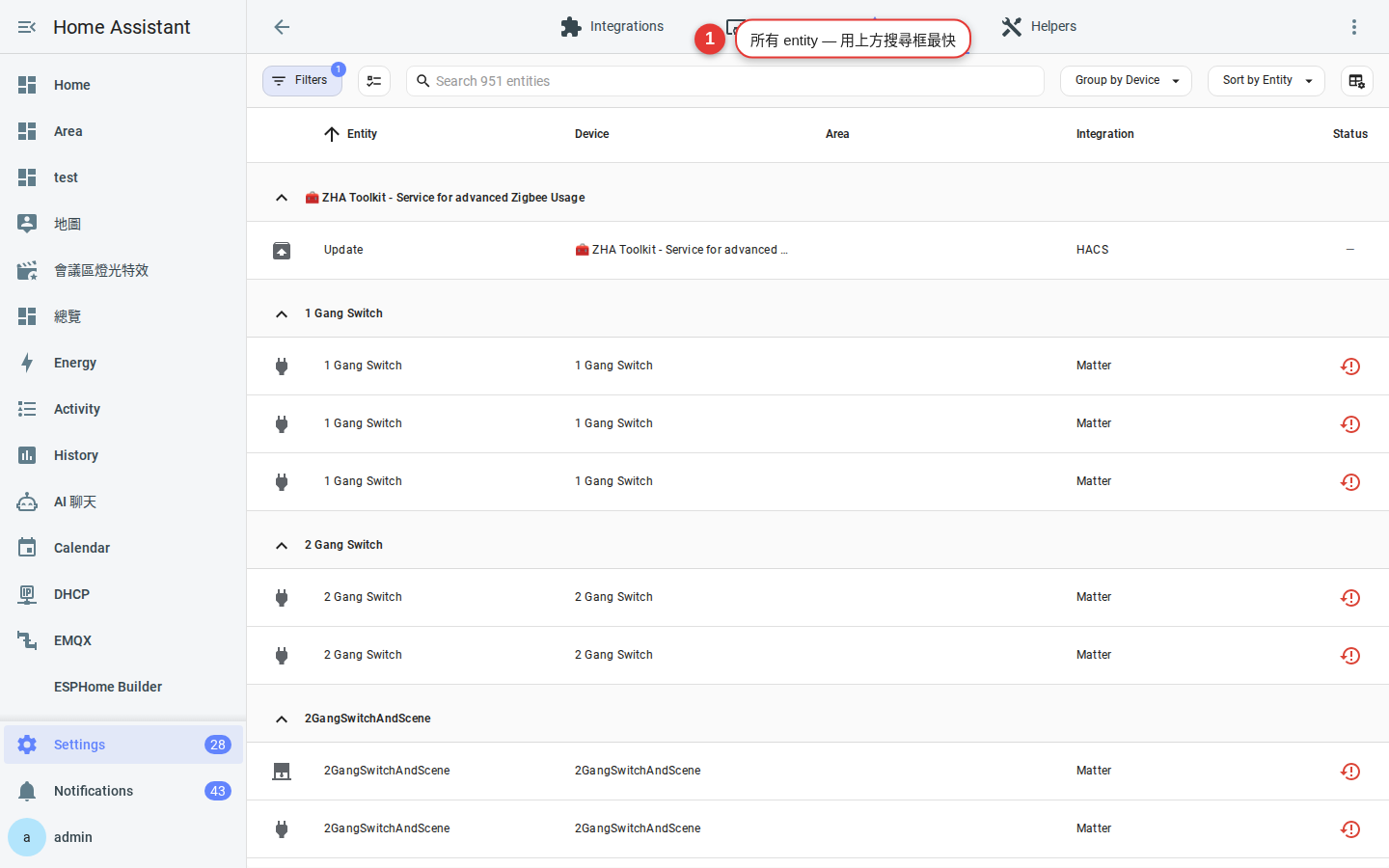
Figure 4-1 Each row in the entity list shows an entity’s status, name, and entity ID. -
Open the entity settings
Select the entity, then select the gear in the upper-right corner of its details.
-
Change the Name field
This changes the friendly name. The entity ID remains unchanged, so references to it continue to work.
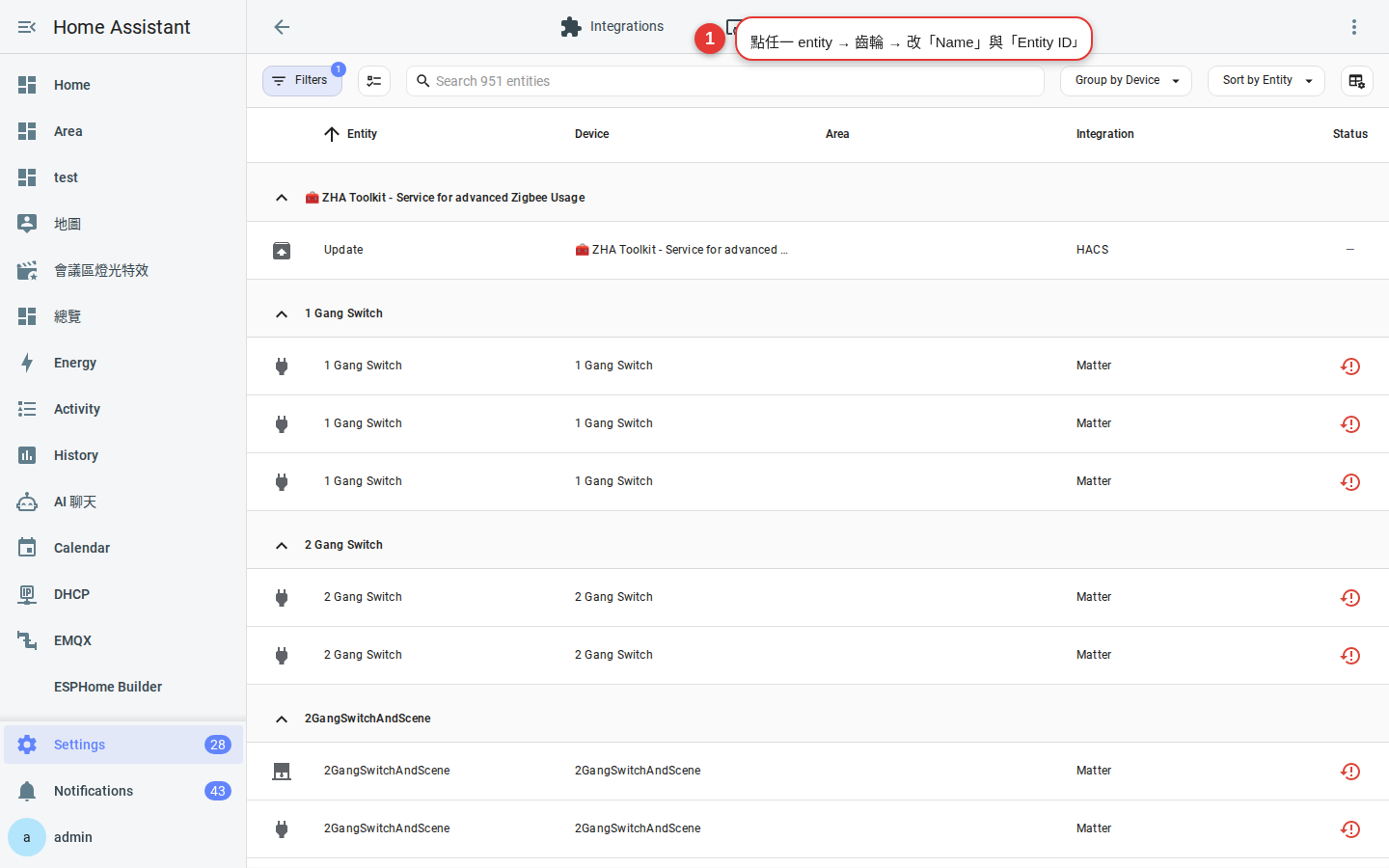
Figure 4-2 Name is the friendly name. Home Assistant warns you before changing Entity ID. -
Decide whether to change the entity ID
Change it early when useful. If the device is new and no automation references it yet, choose a meaningful alphanumeric ID such as
light.living_room_main. Your configuration will be easier to read later.Warning: Before changing an ID already used by automations, scripts, or dashboards, find and review those references. You can inspect the current entity under Settings → Tools → States.
Organize items with labels
An area answers “Where is this light?” A label answers “What kind of item is this?” For example:
- Apply a
Lightinglabel to lights so you can target all lighting together. - Apply a
Backup powerlabel to USB-powered devices that remain powered during an outage. - Apply a
Tenant accesslabel to items a tenant may use, then filter for that label when building a dashboard.
-
Create a label under Settings → Areas, labels & zones → Labels
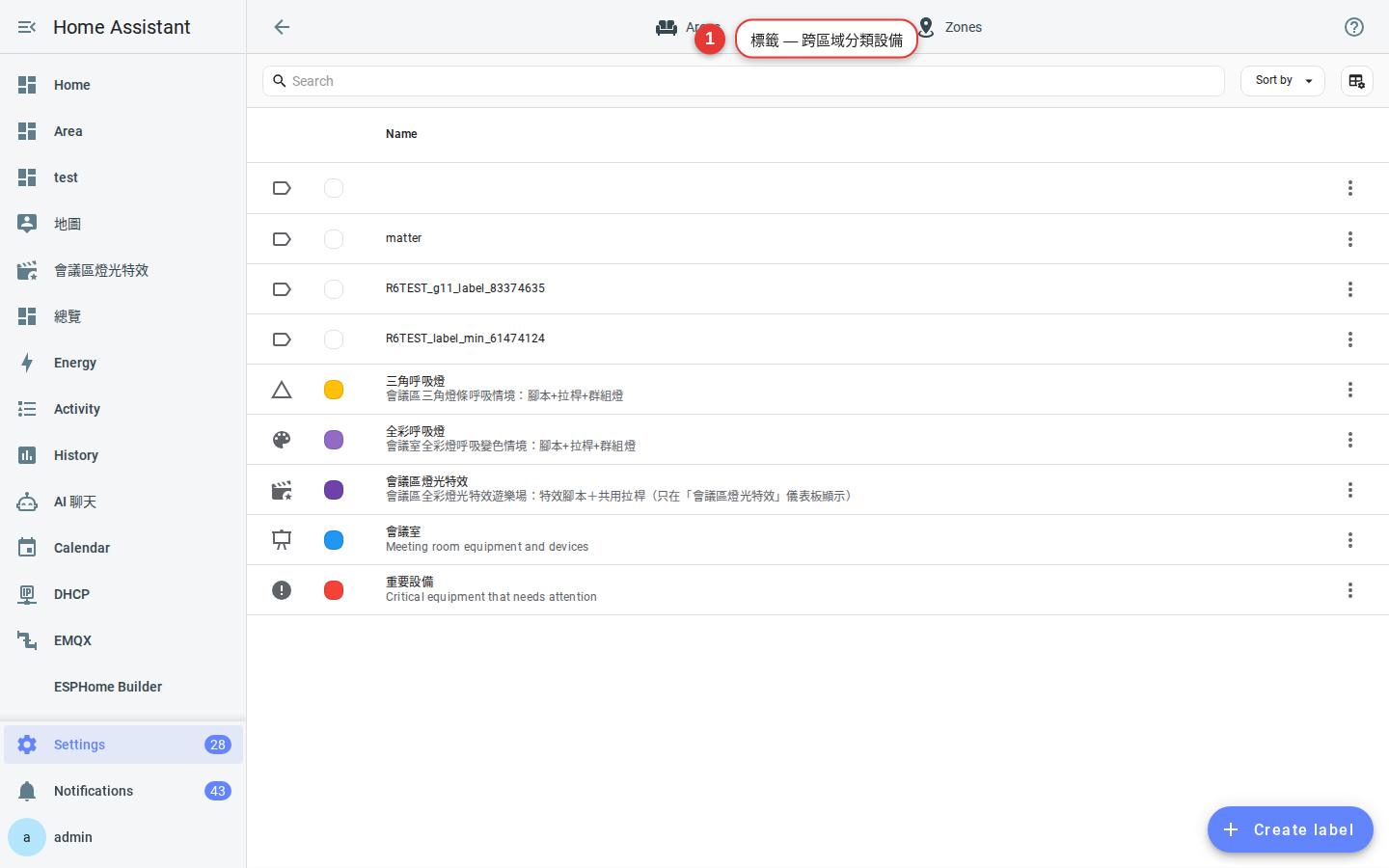
Figure 4-3 Each label can have its own color and icon. -
Apply a label to entities
Select several entities in the entity list, then use Add label to apply one label to all of them.
-
Use labels elsewhere
Labels work on more than entities. You can apply them to areas, devices, entities, automations, scripts, scenes, and helpers. An item can have several labels, while it can belong to only one area.
Use labels in automation targets, dashboard filters, and scripts instead of maintaining a list of individual entities. If an entity changes but its label remains, the group is easier to maintain.
Naming examples
| Type | Friendly name | Entity ID |
|---|---|---|
| Light | Main Light | light.living_room_main |
| Light | Ambient Light | light.living_room_ambient |
| Switch | Water Dispenser | switch.kitchen_water_dispenser |
| Occupancy sensor | Occupancy | binary_sensor.master_bedroom_occupancy |
| Climate | Air Conditioner | climate.master_bedroom_ac |
Categories: another classification tool
Home Assistant introduced categories in 2024.04. They serve a different purpose from labels:
| Comparison | Labels | Categories |
|---|---|---|
| Where they apply | Areas, devices, entities, automations, scripts, scenes, and helpers | Automations, scripts, scenes, and helpers only |
| Automation target | Yes | No; categories organize lists in the interface |
| Typical use | “All living-room lights” or “All security devices” | “Lighting,” “Ambience,” or “Security” for easier browsing |
FAQ
Will Home Assistant update old automations when I change an entity ID?
What is the difference between a label and an area?
Can friendly names be duplicated?
Troubleshooting
Why did an automation stop after I changed an entity_id?
How do friendly name and entity_id differ?
light.living_room_main. Changing it affects automations, dashboards, and scripts that reference the old value. For routine display changes, change only the friendly name.Can I rename several entities at once?
.storage/core.entity_registry is risky and not recommended. Third-party bulk-renaming tools may be available through HACS, but their support can change. The safest approach is to finish naming each new device before you configure the next one.