Put the lights, covers, and climate controls your household uses most where everyone can find them. A clear dashboard should make everyday controls obvious without instructions.
Why customize a dashboard?
An automatically generated dashboard is useful for seeing everything Home Assistant knows about, but it can become crowded and inefficient for daily use.
A better Home screen lets you complete routine tasks in about 3 taps. Focus on two changes:
Remove cards you rarely use.
Move frequent controls to the top.
Review the default dashboard
Version note: Since 2026.2, new installations use the Home dashboard. The earlier layout placed all entities into one automatically generated card per area. That layout remains available as Overview (legacy) when you create a dashboard under Settings → Dashboards. The same organization principles apply to both.
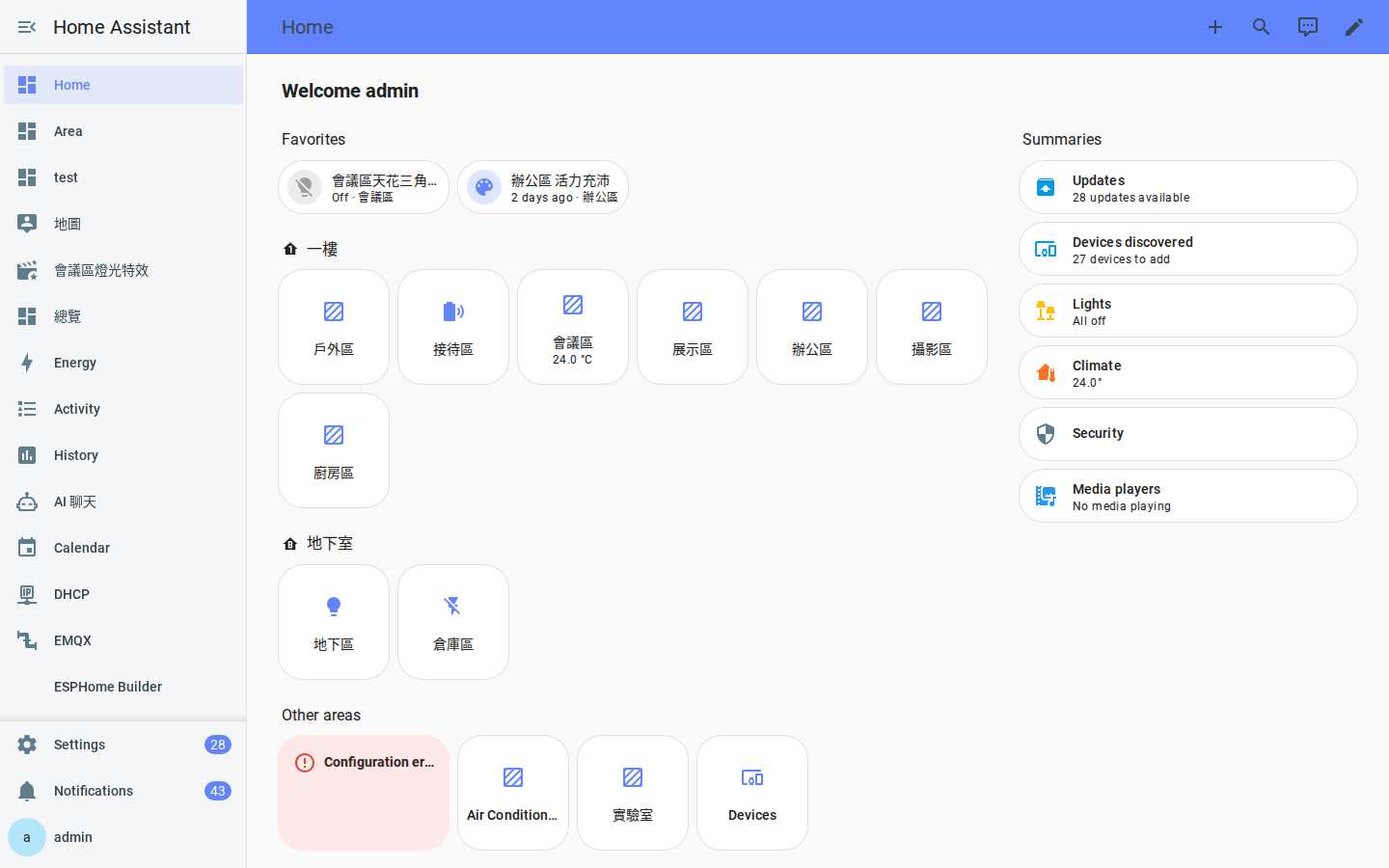
The default dashboard opens after you sign in. The earlier automatically generated layout:
Creates one card for each area.
Includes every entity assigned to that area.
Uses Home Assistant’s internal sort order rather than your daily priorities.
Figure 6-1 The default layout includes every device but may not match how you use them.
Build your own Home dashboard
Tip: Create a new dashboard before changing the default one. Keeping the generated dashboard intact gives you a complete reference, while a separate “My Home” dashboard is yours to arrange.
Enter dashboard edit mode
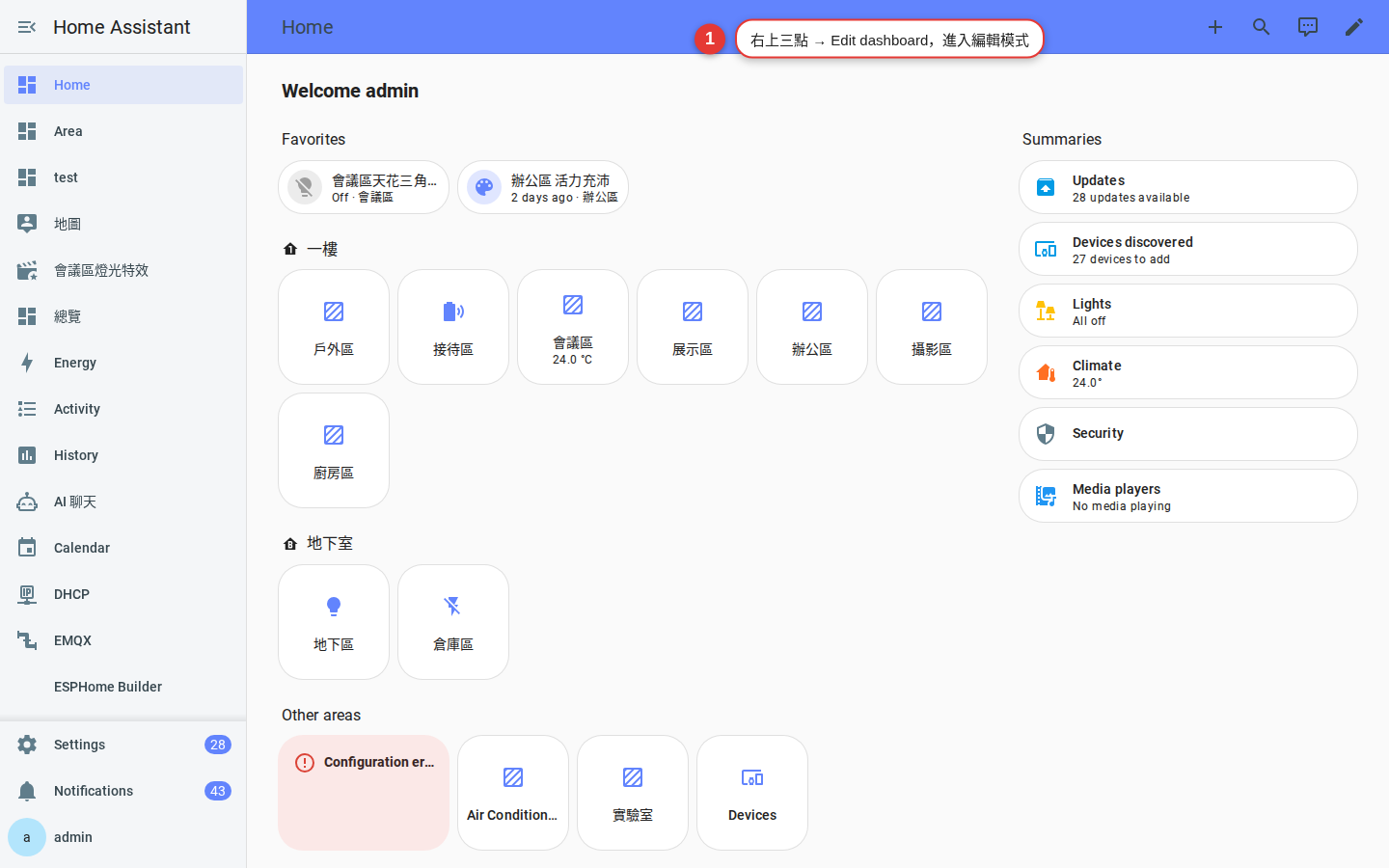
Select the pencil in the upper-right corner, then select Edit dashboard. An edit control appears on each card. In earlier versions, open the three-dot menu and select Edit dashboard.
Figure 6-2 Use the edit control to enter dashboard edit mode.
Remove unneeded area cards
Select the card’s edit control, select the trash icon, and confirm. This removes the card, not the device. The device remains in Home Assistant.
Add a frequently used devices card
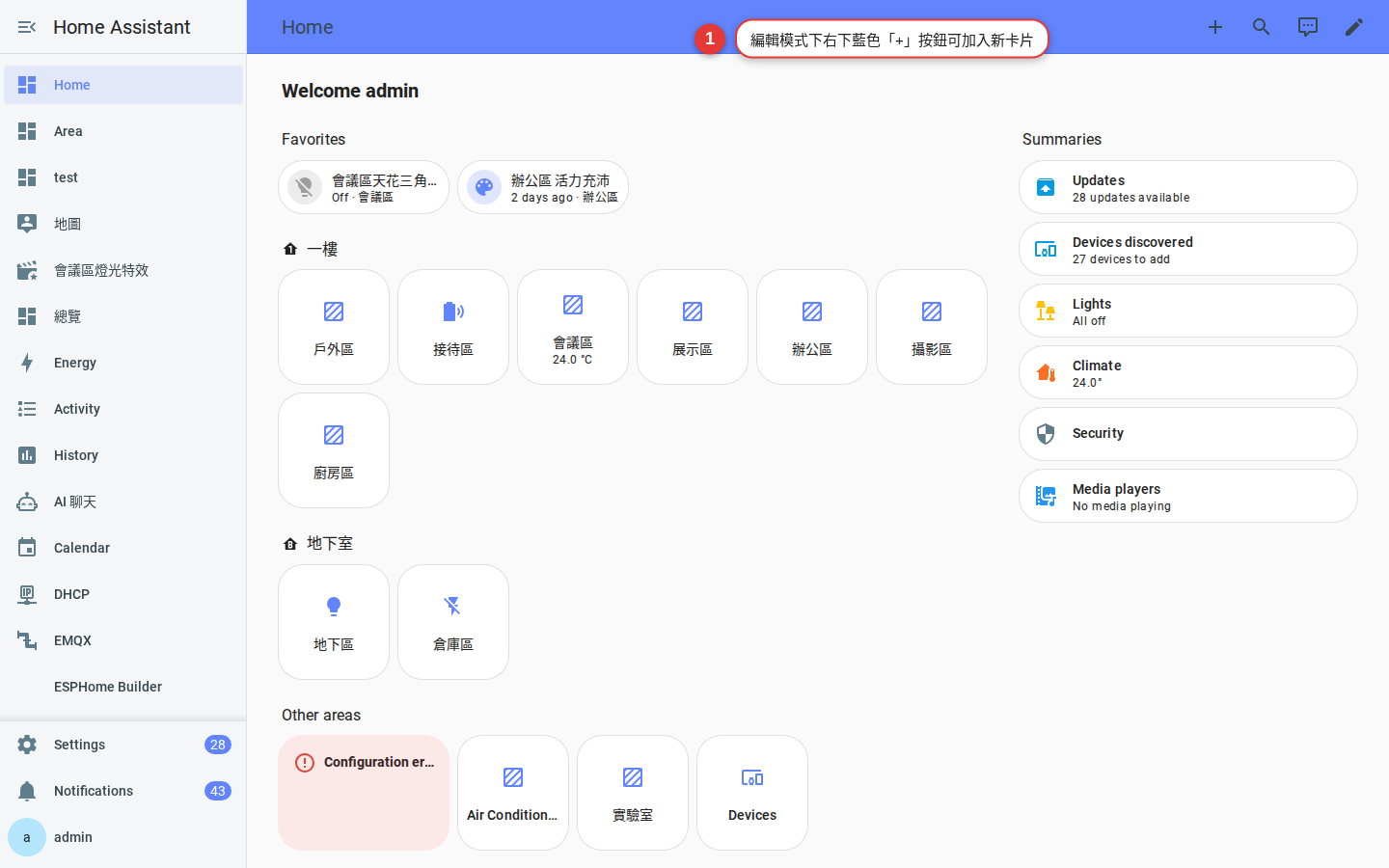
Select Add card in the lower-right corner. Choose an Entities or Button card, select an entity such as the living-room main light, and save.
Figure 6-3 Home Assistant includes nearly 30 built-in card types.
Start with a practical Home card set
Weather card: Check whether you need an umbrella or dehumidifier.
Person card: See who is home at a glance.
Scene buttons: Add controls such as “Arrive Home,” “Leave Home,” and “Sleep.”
Area on/off buttons: Configure a Button card to perform an action, called Call service in earlier versions. Select perform-action in the card’s action settings to control a group such as all first-floor lights.
Reorder the cards
Drag each card to the desired position. Put the controls you use most at the top.
Finish editing
Select Done in the upper-right corner. Do not leave the dashboard before saving your changes.
Verify: Confirm that the new dashboard appears in the sidebar and contains the cards you added. Rotate a phone between portrait and landscape and check both layouts. A Sections view should adapt automatically.
Organize a dashboard with views
One dashboard can contain several views:
Home: Frequent controls.
Floors: Detailed views for the first floor and second floor.
Energy: Electricity and solar data.
Security: Cameras, locks, and sensors.
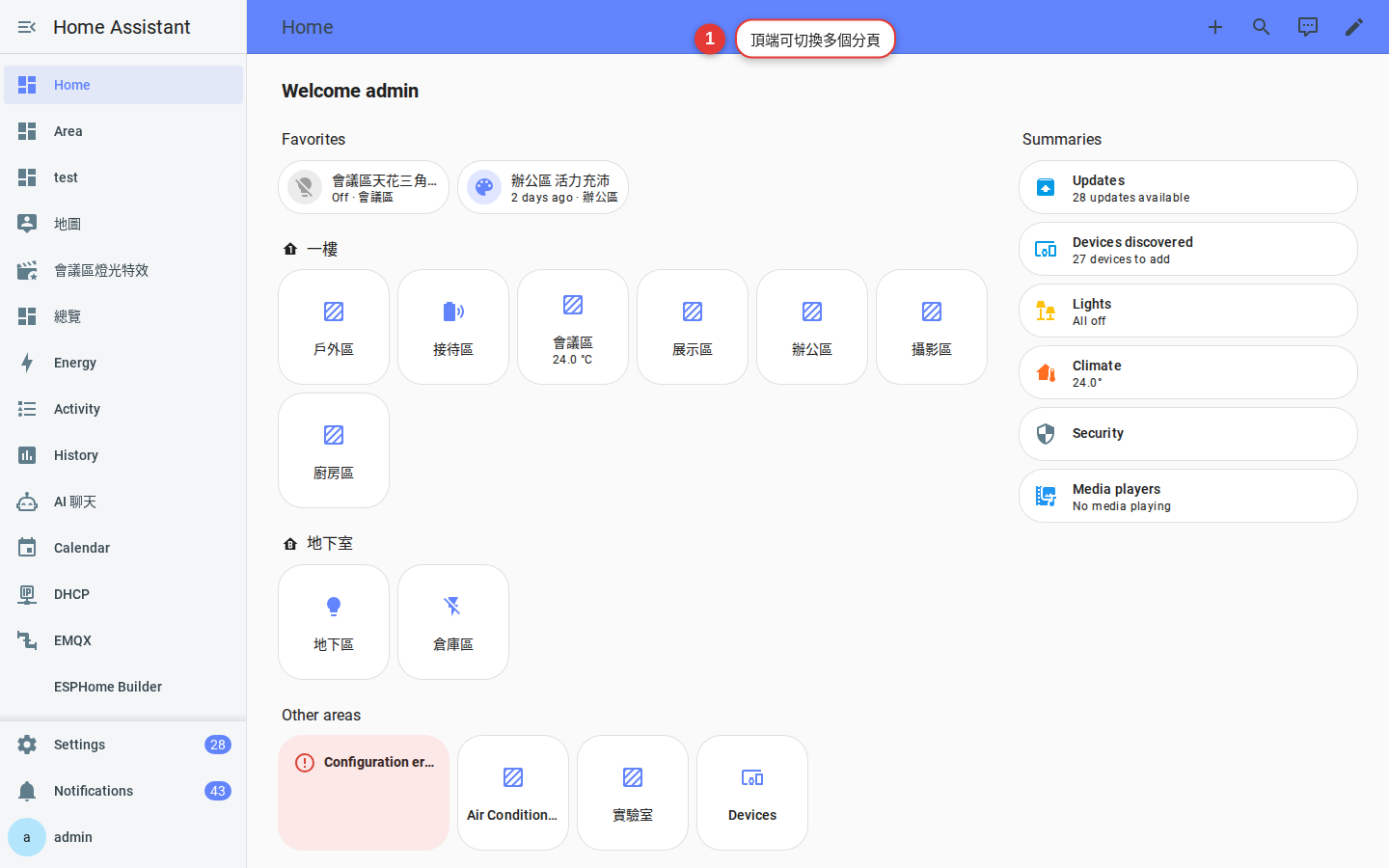
In edit mode, select the plus sign in the upper-right corner to add a view. Each view can specify which users may see it.
Figure 6-4 A dashboard organized into multiple views.
Choose among four view types
Each view can use its own layout:
Sections (default after 2024.03): Arrange cards in draggable sections that adapt to phones and desktop screens. This is the best starting point for most beginners.
Masonry: The earlier default stacks cards in columns. Keep it if it already suits your layout.
Panel: Fills the view with one card, such as a map or energy overview. It works well for a dedicated large display.
Sidebar: Keeps one card beside a larger main area. It can work well on a tablet.
Recommendation: If you are unsure, choose Sections. You can add a Sections version of an existing view without deleting the original, then compare them.
3 layout tips
Tip 1: Group cards with Sections. Sections became the default view type after 2024.03. Separate lighting, climate, and covers into distinct sections instead of one long list.
Tip 2: Preview the phone layout. In edit mode, use the desktop and mobile preview under View. For a phone, prefer one column and show only the 3-5 most important cards first.
Tip 3: Use Visibility conditions. A card can appear only under selected conditions, such as showing a dehumidifier when it rains or omitting a primary-bedroom light from a guest view.
Advanced: tailor cards by user. Place content inside a Conditional card, choose a user condition, and select the accounts that should see it. Combined with the guest account from Chapter 5, this can show guests lighting controls without placing camera cards on their view. Visibility is a dashboard presentation setting, not a substitute for account permissions or other access controls.
FAQ
Can I recover a card I deleted by mistake?
If you are still in edit mode, use Undo in the upper-right corner. After leaving edit mode, you may need to rebuild the card. Before a major change, open the raw configuration editor from the three-dot menu and copy the YAML to a text file as a backup.
Can I copy a dashboard for a child?
Yes. Go to Settings → Dashboards, create a dashboard from a template, and make it visible to the intended user. Parents and children can then use different Home dashboards.
Can I install custom cards from HACS?
Yes. Examples include mushroom-cards and button-card. Start with built-in cards so you understand dashboard concepts before adding community-maintained components.
Troubleshooting
Why can’t I drag cards or enter edit mode?
Select the pencil in the upper-right corner and choose Edit dashboard. In an earlier version, use the three-dot menu. If the edit control is missing, the current account may not have permission to edit that dashboard, as with a guest account.
How do I restore a damaged default dashboard?
Open Settings → Dashboards → Home, use the three-dot menu, and select the option to regenerate it. Earlier versions name the dashboard Overview. If regeneration fails, restore a suitable earlier backup by following Chapter 9.
Why does the Companion App open a different dashboard?
The Companion App can specify which dashboard opens by default. That choice is stored separately from the default used by your web browser.