Log in to Home Assistant
Make sure you can reach Home Assistant reliably before you continue. You will learn how to recognize the login page, remain signed in on a trusted device, and choose between a web browser and the Companion App.
Why this matters
Home Assistant (HA) is a smart-home hub designed around local control. Its core state, automation, and room data can remain on the host in your home, although any cloud-based integrations you enable may exchange data with their providers.
Because you run the server, signing in differs from signing in to a typical online service:
- There is no email-based “Forgot password” link. The host manages your credentials.
- You might connect through a local-network address or through a domain provided by Nabu Casa or your own DDNS setup.
- A browser works well for configuration on a computer, while the Companion App adds phone-specific features.
Do not confuse Owner and Administrator: The first account created during installation is the Owner. It has the highest level of access, and you cannot recover its password through an email reset. An Administrator account created later, as described in Chapter 5, has similar permissions but is not the Owner. A Home Assistant installation has only one Owner.
Find your Home Assistant URL
Your URL will usually take one of these three forms:
- Local-network address:
http://homeassistant.local:8123orhttp://192.168.x.x:8123. - Nabu Casa remote address:
https://xxxxx.ui.nabu.casa(paid subscription). - Self-hosted domain: for example,
https://ha.yourdomain.com. The source author useshttps://woowtech-ha.woowtech.ioas a self-hosted address.
Log in
-
Open the login page
Enter your Home Assistant URL in a browser. A blue-and-white login card with the Home Assistant logo should appear.
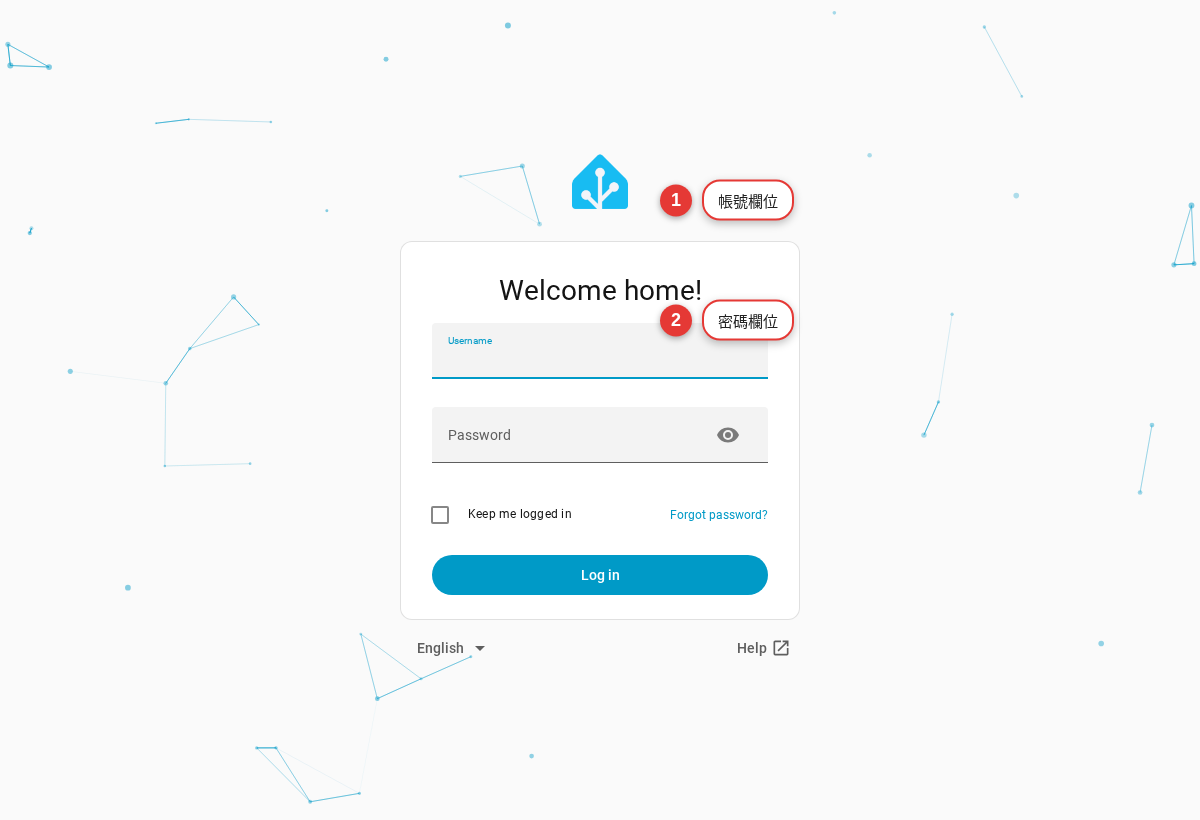
Figure 1-1 The login page has fields for your username and password, plus a stay-signed-in option. -
Enter your username and password
Use the account created when Home Assistant was installed. If you are a household member or tenant, ask an Administrator for your own account. Chapter 5 explains how to create one.
-
Select “Keep me logged in”
This option lets the browser remember your session, so you do not have to enter your password whenever you return. Home Assistant does not specify a fixed session length, but it states that unused login credentials are automatically removed after more than 90 days. Regularly used credentials can therefore remain active. Do not select this option on a shared computer.
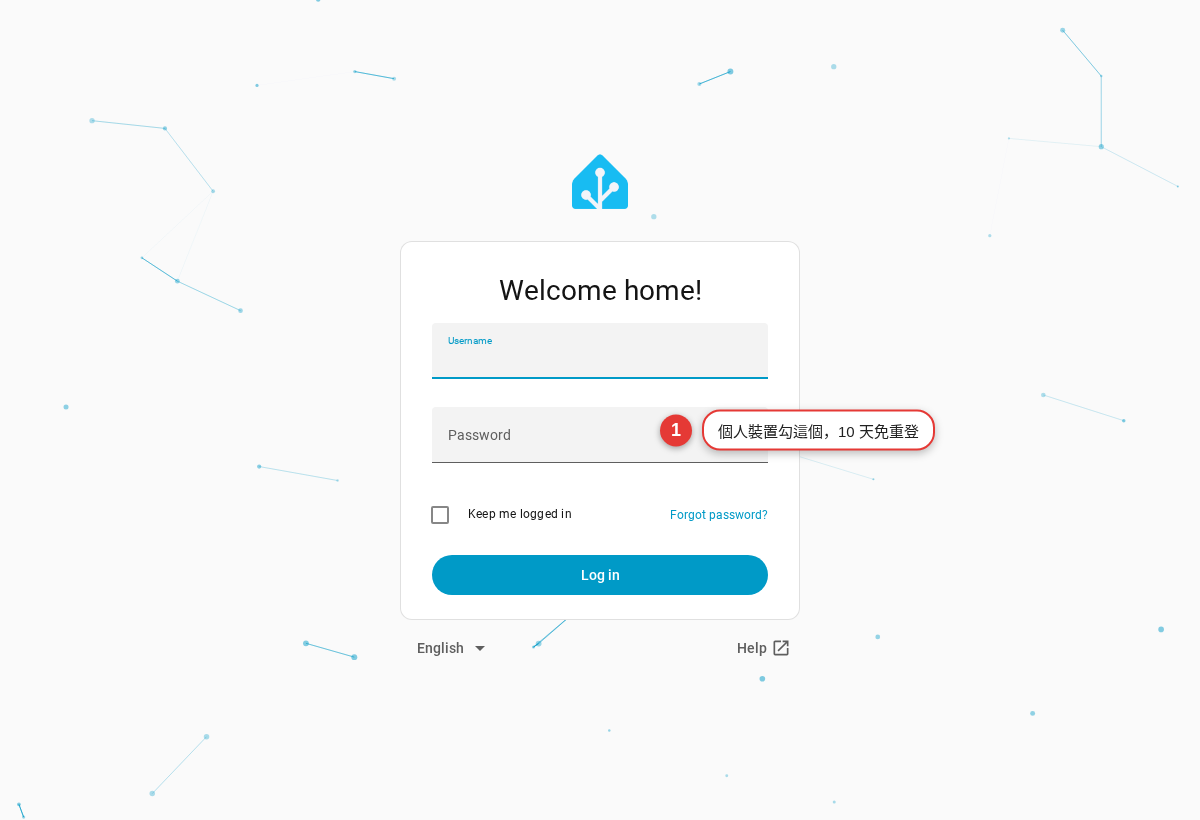
Figure 1-2 Select “Keep me logged in” only on a personal device. -
Open Home
After a successful login, Home Assistant opens the Home dashboard, called Overview in earlier versions. It shows status cards for the areas in your home.
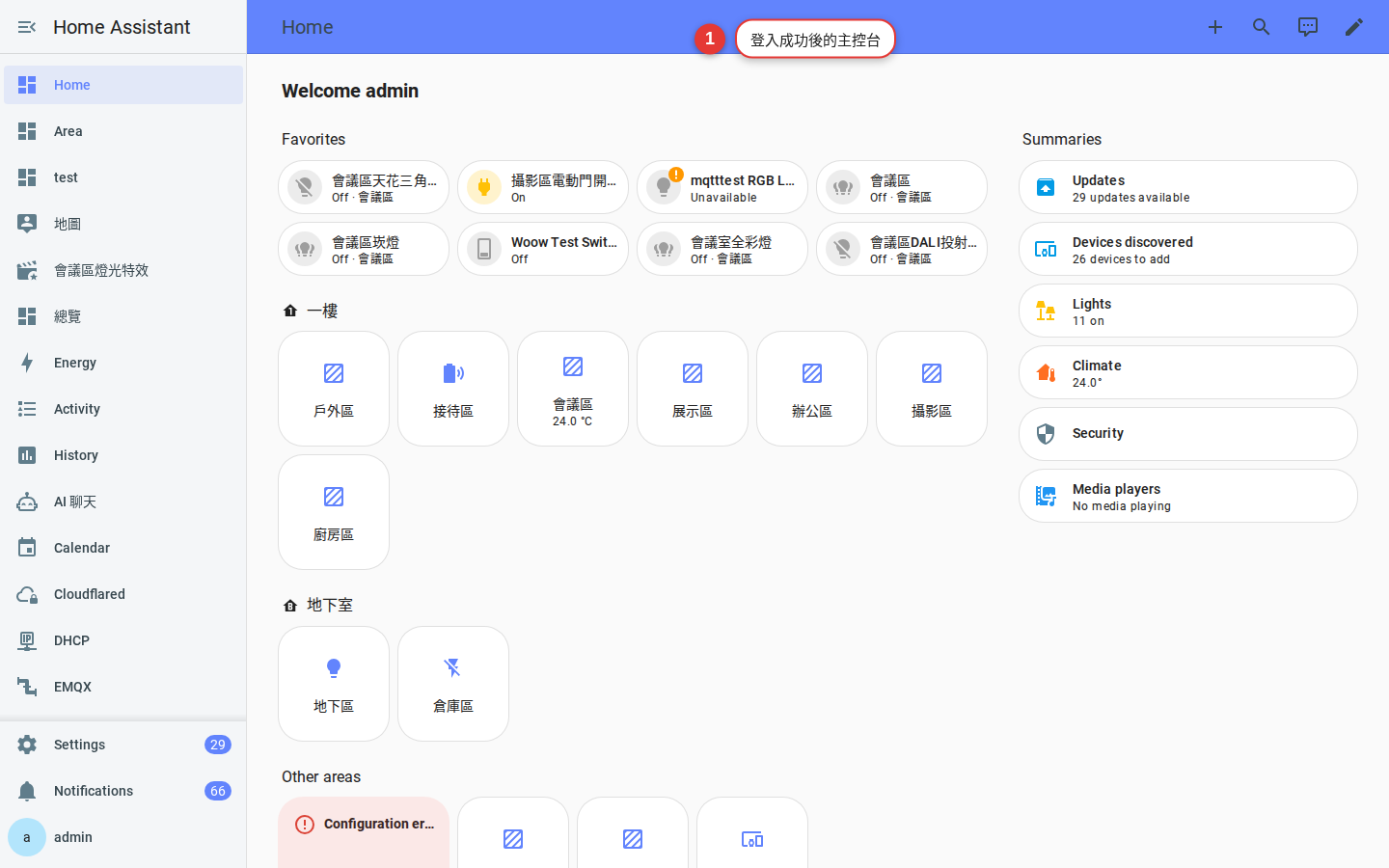
Figure 1-3 The dashboard has navigation on the left, views across the top, and cards in the main area.
Web browser or Companion App?
Both connect to the same Home Assistant installation and show the same underlying data. Their strengths differ:
- Web browser: The larger screen is well suited to changing settings, creating automations, and reading history charts.
- Companion App (iOS/Android): It can receive push notifications, expose phone data such as battery level, location, and Wi-Fi network name to Home Assistant, and support biometric access.
FAQ
What if I forget my password?
auth reset --interactive from its console. The Home Assistant documentation specifically says not to use an SSH terminal from an app or add-on. For a Docker installation, enter the container, run hass --script auth --config /config change_password <username> <new_password>, and then restart the container. If you are not an Administrator, ask one to reset your account through the Users section described in Chapter 5.Why does the login page keep spinning?
Can I use one account on multiple devices?
Troubleshooting
Work through these checks in order:
-
Check the URL
While connected to the same Wi-Fi network as the host, open
http://homeassistant.local:8123in a browser. This is the default mDNS address for HAOS. -
Check the certificate warning
A browser may show a security warning when you use a local IP address without a certificate. If you trust the local host and network, select Advanced → Continue.
-
Reset a forgotten Owner password
Home Assistant states that you cannot recover the Owner password from within Home Assistant. On HAOS, connect a monitor and keyboard to the host and run
auth reset --interactiveat the directly connected console; do not use an SSH terminal. With Docker, enter the container and usehass --script authto change the password. If neither route works, you must repeat initial setup or restore a backup, as covered in Chapter 9. This is why you should create a backup as soon as possible. -
Fix Companion App login failures
The app needs an address it can reach from the current network. A local address will not work while you are away from home unless you have configured remote access. Chapter 7 covers the app, and the appendix outlines remote-access options.